Bearing Vibration Analysis
neo-pkg-bearing-analytics turns vibration sensor data stored in Machbase Neo TAG tables into machine-health insight — without writing any SQL or TQL.
Its core is bearing fault diagnosis. Envelope demodulation checks whether evidence stands at the bearing defect frequencies (BPFO / BPFI / BSF / FTF), and the method has been verified against public run-to-failure datasets.
A severity grade rises only when there is evidence of a bearing defect. High vibration on its own does not raise it — that is reported separately as ISO 10816 severity. When the spectrum shows common rotating-machinery patterns such as imbalance (1×), misalignment (2×) or mechanical looseness, the app notes them as “suspected” but does not grade them: without a phase (tacho) reference or an axial channel, those cannot be confirmed in principle. What this tool does and does not do draws the full boundary.
If the terms above (BPFO, envelope, fault pattern) are unfamiliar, read the Glossary first — it is a single page.
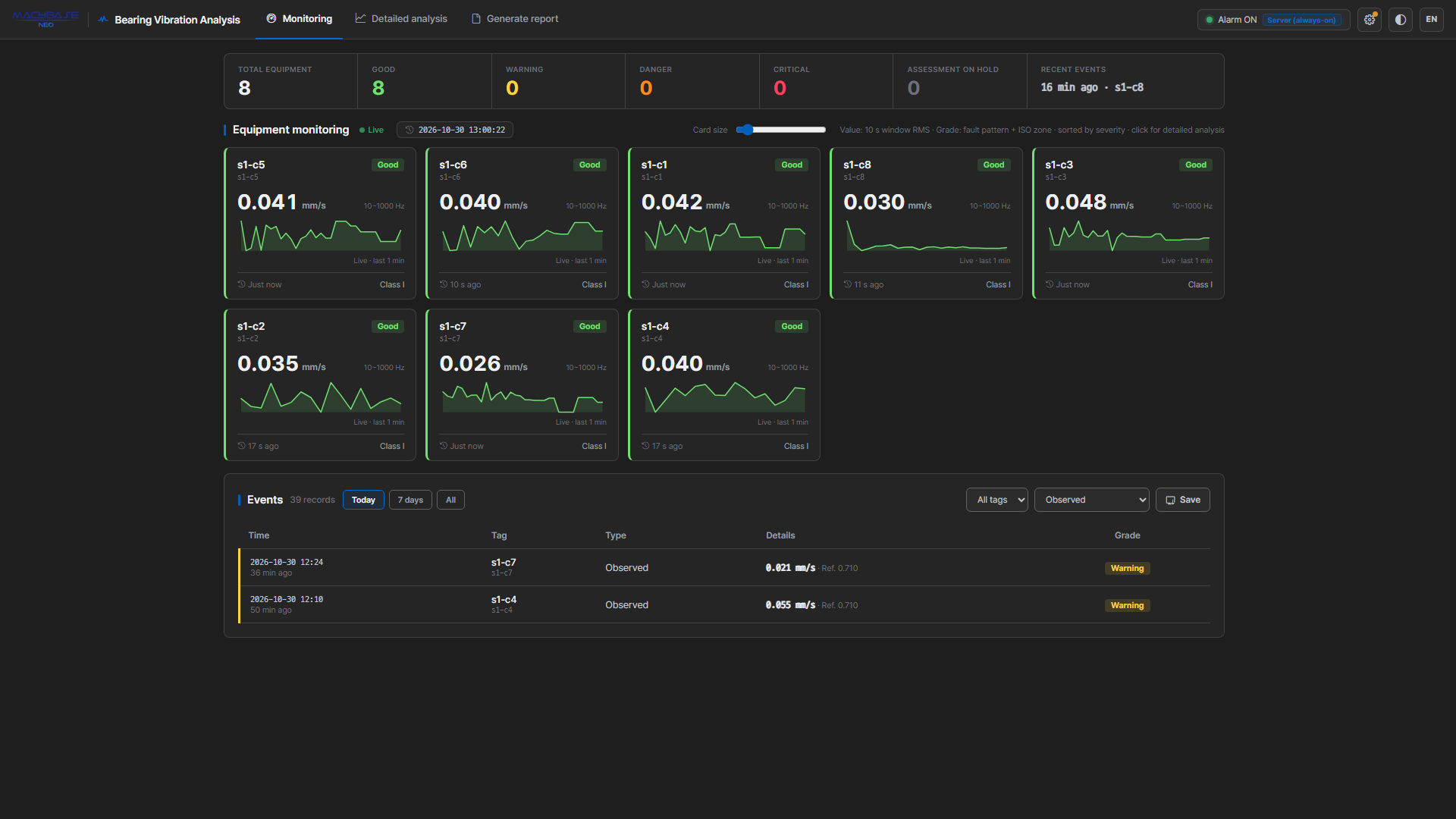
Open the app in your browser and every piece of equipment is graded in real time — the fault pattern switches the grade on and the ISO 10816 zone sets its height. From there you get per-tag waveform and spectrum analysis, rule-based fault diagnosis with what to do now and action details, and one-click analysis reports — all in one place.
Every analysis is deterministic. Grading, diagnosis, and reporting need no LLM. An LLM connects only as an optional layer that adds a narrative expert opinion to detail analysis and reports.
Installation
In the Machbase Neo left side panel, select neo-pkg-bearing-analytics from the package list and press Install. Wait for the installation to finish.
Before first use, an administrator (SYS) has to create the dedicated database and grant each account — see First setup. Each account that uses the app also needs an API token issued in Neo — see Entering the API token. Requires Machbase Neo 8.7.3 or later.
Uninstall
Select neo-pkg-bearing-analytics in the left panel and press Uninstall to remove the package. Accumulated settings, events, baselines, and reports are preserved.
The timers this package registers (server monitoring, band extraction, and so on) stay outside the package in Neo’s timer list. A timer can only be managed with its own account’s API token, so uninstall does not delete timers — before uninstalling, turn alarms off in the app under each account, also turn off Criteria → Band & fault-pattern extraction, and save, which deletes that account’s timers. If you uninstall without doing so, the remaining timers have no file left to run, so they stop at their next run with STOP, not found and never run again. Delete NEO_BEARING_* for each account in Neo’s timer screen. The uninstall log repeats this guidance.
How it works
On launch the app connects to Neo, auto-detects TAG tables, and runs on live data. If no TAG table is available, the app stays empty with an explanatory message — it does not substitute mock data, so every value on screen is a value that actually exists in the DB.
All analysis is computed deterministically inside the package. Signal processing — RMS, FFT, envelope, kurtosis, bearing fault frequencies — and grading run in the browser and in package code with no external calls.
Screen layout
There are three main tabs plus a Settings (⚙) entry point. The right side of the header holds the alarm toggle, a theme switch, and the screen language selector (KO · EN · JA).
| Tab | Purpose |
|---|---|
| Monitoring | Equipment card grid, per-grade summary (including On hold), event list |
| Detail Analysis | Snapshot of the selected tag — waveform, trends, FFT, envelope, cepstrum, spectrogram, per-band impulsiveness, rule-based diagnosis |
| Report | Generate, preview, and archive vibration analysis reports |
| Settings | Data Source · Equipment · Criteria · Alarms · LLM · Data management |
How detection works
The fault pattern switches the grade on; the ISO zone sets its height.
| Criterion | Question | Role | Needs training |
|---|---|---|---|
| Fault pattern | Does evidence stand at the bearing fault frequencies? | gate — without it the grade stays Good | No |
| ISO zone | Is it absolutely high by the international standard? | height — how urgent | No |
| Baseline | Is it high compared to this machine’s own normal? | evidence display | Yes |
| Band energy | Has one specific frequency band jumped? | evidence display | Yes |
High vibration alone does not raise the grade — that fact is stated separately on screen. Verified on 383 public-dataset cases: putting all four criteria into the grade flagged 69% of healthy machines; this structure flags 3%.
Neither grade-forming criterion needs training, so judgment starts as soon as you enter RPM and the bearing model.
How detection works has the details; what this tool does and does not do has the measured limits.
Monitoring modes
Alarm evaluation runs in one of two modes, selected in Settings → Alarms.
| Mode | Evaluated by | When the app is closed |
|---|---|---|
| App monitoring (default) | The app open in your browser | Evaluation stops |
| Server monitoring | A Neo timer | Keeps evaluating and recording events |
Both modes use identical evaluation rules, so switching modes produces the same results from the same data. See Alarms & events for details.
LLM providers (optional)
Used only to add a narrative opinion to detail analysis and reports. Four providers are supported.
| Provider | API | Local |
|---|---|---|
| Claude | Anthropic API | No |
| OpenAI | OpenAI API | No |
| Gemini | Google Gemini API | No |
| Ollama | Ollama REST API | Yes |
Grading, diagnosis, and reporting all work even without a provider connected.
What gets stored
Everything lives in a dedicated database, NEO_BEARING_STORE. An administrator creates it once and grants each account; after that the app creates the tables it needs automatically when it is opened (the shared tables the first time it is opened as SYS, each account’s CONFIG table the first time that account opens it).
| Name | Kind | Contents | Per-account separation |
|---|---|---|---|
SYS.EVENTS | TAG table | Event history (never auto-deleted) | Row key <account>: |
SYS.BAND | TAG table | Band energy trend and fault-pattern score trend | Row key <account>: |
SYS.BASELINE | LOOKUP table | Learned normal state (μ, σ) | Row key <account>: |
SYS.MONSTATE | LOOKUP table | Last evaluation state per tag, monitoring status, which tab leads evaluation | Row key <account>: |
<account>.CONFIG | LOOKUP table | All settings — data source, equipment, criteria, alarms, LLM keys | One table per account |
<account>/vibration-reports/ | Files | Generated report HTML (the account in the folder name is lowercase) | One folder per account |
The first four tables are shared: one copy, with the account encoded in each row’s key. The UI shows names without the prefix. CONFIG is the exception — it holds LLM API keys and webhook URLs, and Machbase has no row-level permissions, so only a separate table keeps other accounts from reading it at all.
Uninstalling the package leaves settings, events, baselines, and reports in place. Check and clean up accumulated data under Settings → Data management.
Basic workflow
- Install the package in Neo; an administrator prepares the store and grants.
- In Settings → Data Source, select the TAG table(s) to analyze.
- In Settings → Equipment, register RPM and bearing model (required for grading), plus unit and class.
- In Settings → Criteria, review the zone boundaries, and optionally learn the normal baseline.
- In Settings → Alarms, choose a monitoring mode and notifications, then turn alarms on.
- Check equipment condition on the Monitoring tab.
- Click any card that looks abnormal to open Detail Analysis.
- In Report, pick target tags and a period, then generate an analysis report.
Documents
| Document | Contents |
|---|---|
| Glossary | Start here if vibration analysis is new — BPFO, envelope, fault pattern, On hold |
| First setup | Storage and grants · data source · equipment · criteria · LLM · data management |
| Usage | Monitoring · detail analysis · reports |
| Alarms & events | Monitoring modes · alarm settings · notification channels · monitoring health |
| How detection works | What is measured and how grades are decided |
| Fault types and signatures | Which faults are distinguished, on what evidence, and what each setting unlocks |
| What this tool does and does not do | Measured performance on public data · what it cannot do |
| Troubleshooting | Symptoms, causes, and fixes |