Usage
Once setup is done, you work across three main tabs — Monitoring · Detail Analysis · Report. The screens can be shown in Korean, English, or Japanese; a Korean label in parentheses is what the Korean screen shows.
Monitoring
The at-a-glance view of every piece of equipment.
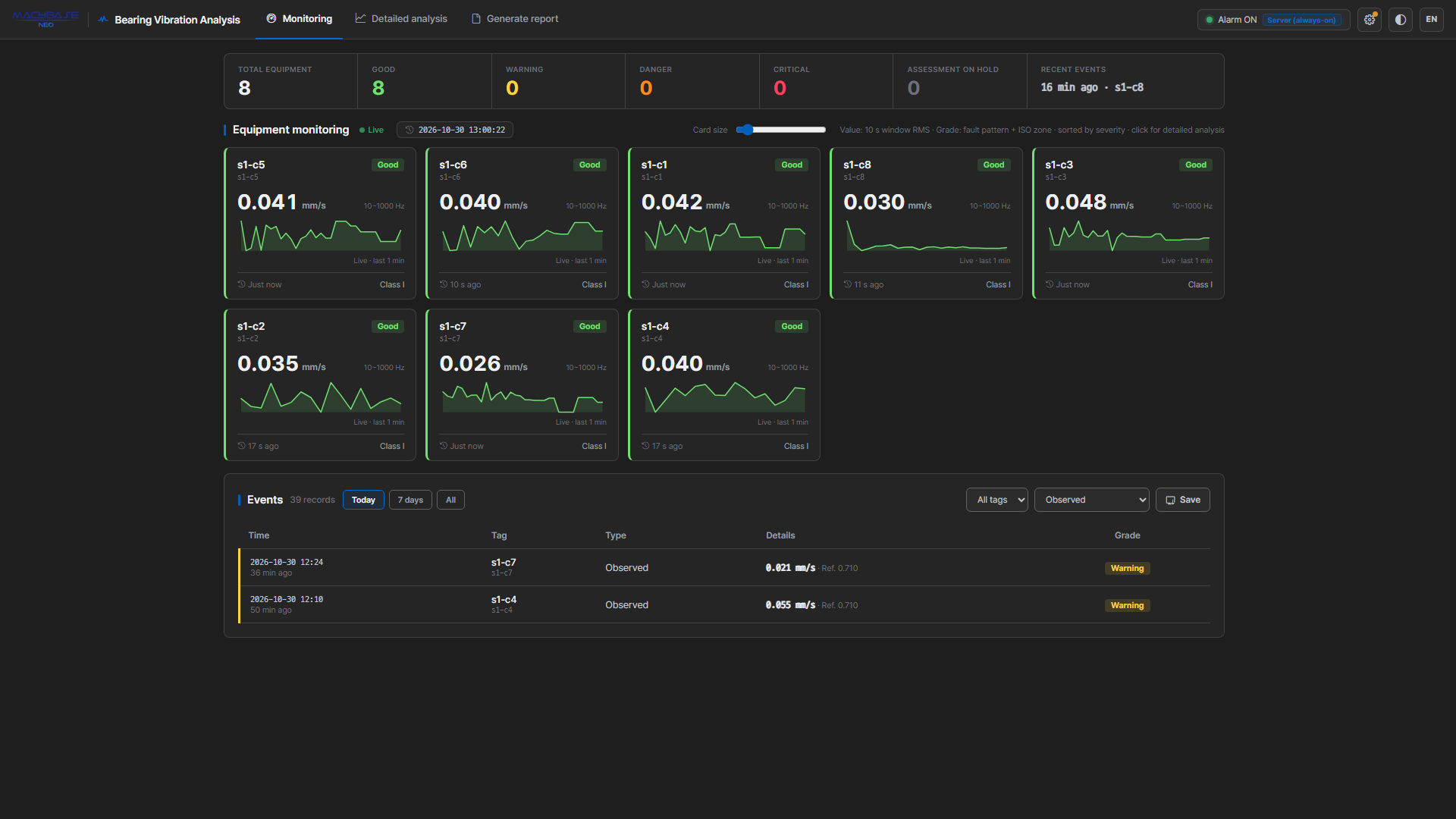
Summary bar
The top summary bar has these cells.
| Cell | Contents |
|---|---|
| Total equipment | Number of machines on screen. Clicking it clears the grade filter |
| Good · Warning · Danger · Critical (양호 · 주의 · 위험 · 심각) | Machines per grade. Click to filter the cards to that grade; click again to clear |
| On hold (판정 보류) | Machines not being graded right now. Hover for the breakdown (instrumentation fault · signal lost · stopped · cannot judge · fault pattern waiting/failed · waiting); click to show only those |
| Recent event | The latest event. It ignores the event-list filters below |
Equipment cards
Each selected tag gets one card. Click a card to open Detail Analysis for that tag.
| Card element | Meaning |
|---|---|
| Alias · tag name | With two or more data sources, the table name follows the tag name |
| Grade badge | Good · Warning · Danger · Critical. The suffix N시간째 is the time since confirmation, 1회차·2회차 is an unconfirmed candidate cycle, and 복귀 N회차 means recovery is being confirmed |
| Large number | The ISO vibration value that sets the grade height (10–1000 Hz band RMS, marked 10~1000 Hz next to the unit). Acceleration and displacement sensors show the same band in their original unit. Until it is available, the window RMS is shown with its measurement band |
| Hover on the number | Whether a fault pattern was detected (grid score), multiples of the baseline and band limits, and the gap between the ISO and full-band values |
| Sparkline | Vibration over the last minute |
| Bottom line | Last-seen time · class |
- The default sort is worst grade first. Drag cards to arrange them however you like; that order is saved and restored next time.
- The card size slider adjusts grid density.
- A card’s grade follows the same rule as the alarm — at every fault-pattern extraction interval (10 minutes by default) the fault pattern switches the grade on and the ISO zone sets its height. The RMS window in alarm settings is used for running/stopped, signal loss, instrumentation checks, and the versus-normal evidence.
Card badges
| Badge | Where | Meaning | What to do |
|---|---|---|---|
| On hold (판정 보류) | in place of the grade | Not graded right now. Hover for the reason and the last confirmed grade | See the reasons below |
| Stopped (정지) | over the sparkline | The machine is standing still, so judgment is frozen (previous state kept) | Nothing — judgment resumes when it runs again |
| Signal lost (신호 두절) | over the sparkline | No data arriving. The line is dimmed | Check the collection path |
| Instrumentation fault (계측 이상) | over the sparkline | The waveform cannot be trusted (clipping, DC drift, …) | Check sensor, cable, mounting |
| Repeated N× (등급 반복 N회) | top right | The grade worsened (threshold) three or more times in the last two hours | Click to open detail analysis at the latest worsening |
Besides stopped, signal lost, and instrumentation fault, On hold has these reasons:
- Cannot judge (판정 못 함) — no RPM or bearing geometry, so the fault pattern cannot be built (sleeve bearings included). Fill in Equipment.
- Waiting (판정 대기) — right after opening the app, before the first evaluation.
- Fault pattern awaiting first measurement / measurement failed — the fault pattern could not be measured this cycle, so the previous grade is held. It is measured again next cycle.
Table filter
With two or more data sources, a table filter (테이블 필터) appears next to the “Equipment monitoring” heading. Pick only the tables you want to see to narrow the cards and the summary bar.
- It changes the display only. Monitoring and alarms still cover every table (to remove one for good, deselect it in Settings → Data Source).
- Hiding everything shows “no table selected for display” with a Show all button.
Monitoring status alerts
If monitoring is not running properly, a warning appears at the very top of the screen — the timer stopped, it is running but has nothing to evaluate, or app-side evaluation stalled. Most of these offer a Re-register button that fixes them on the spot.
This exists so you can tell whether “no events” means the equipment is fine or monitoring is dead. Each message and its fix is listed in Alarms & events › Checking that monitoring is alive.
Event list
The event list below shows recorded events with time · tag · type · detail · grade. Click any row to open detail analysis at the moment that event occurred.
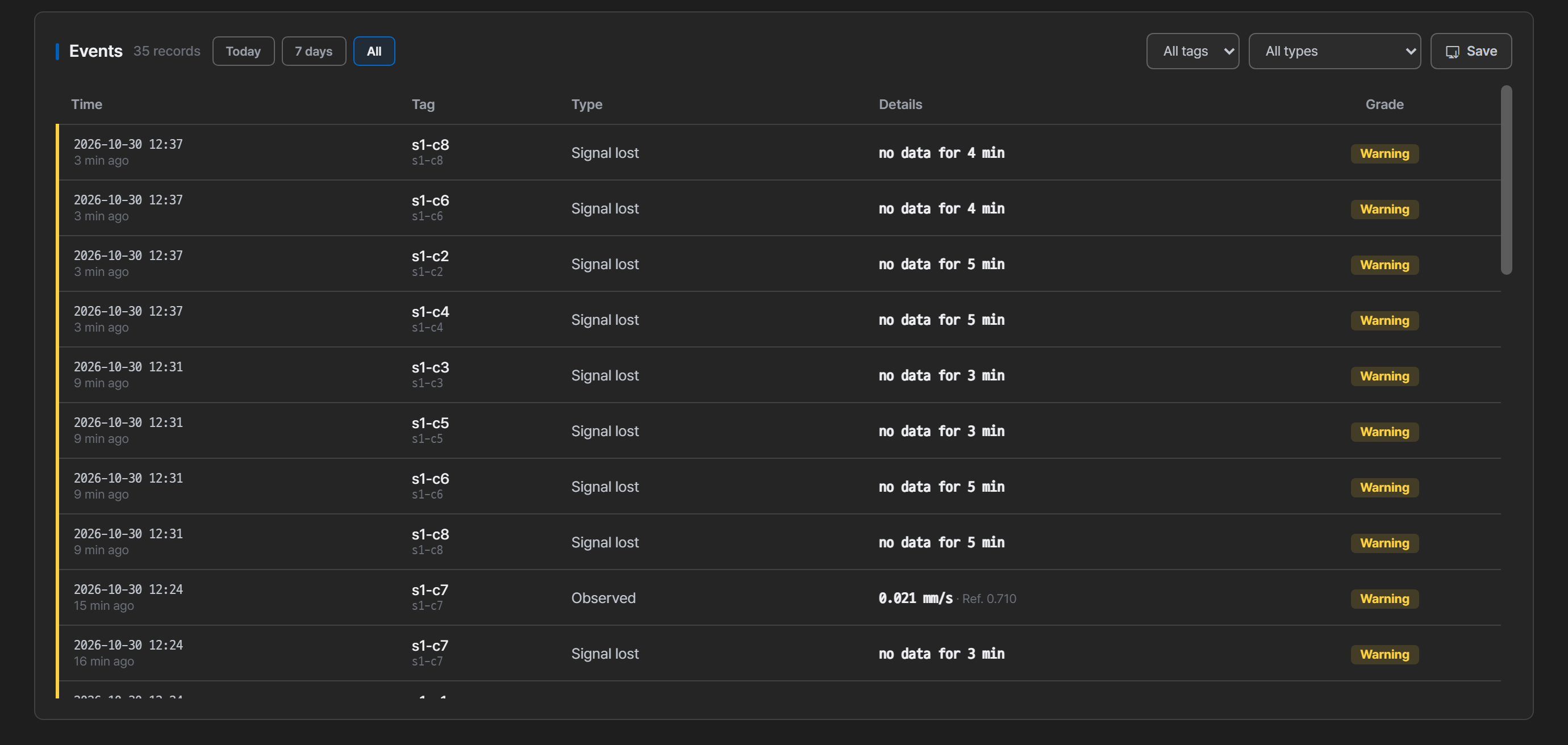
The detail cell shows, by type:
| Type | Detail cell |
|---|---|
| Grade events (observation · threshold · sustained · improved · recovered), velocity (mm/s) sensors | The ISO value that set the grade height · the zone boundary crossed (e.g. 3.2 mm/s · 기준 2.8) |
| Grade events, acceleration (g) / displacement (μm) sensors | Value in the original unit · grade basis (e.g. 0.077 g · ISO 위험 구간 · 결함 패턴 외륜(BPFO)) — the grade comes from the ISO value converted to velocity, so there is no limit to state in the original unit |
| Signal lost | Time without data (e.g. 6분 무수신) |
| Instrumentation fault · recovery | The reason (e.g. 플랫라인, 계측 정상 복귀) — hover for the explanation. It is not a vibration value, so no number is shown |
The fault pattern’s grid score, site, and cycle (e.g. 격자 3.2 · 외륜(BPFO) · 2회 연속 확정) are written in the “detail” column of the exported file and in notification text.
- Period chips (today · 7 days · all) and the tag and type dropdowns narrow the list. It shows the most recent 200 matching events, and the count is every matching event. Use export to see beyond that.
- The list is re-read every 30 seconds — events recorded by server monitoring or by another tab appear without a reload. Only events of the tags currently monitored are shown; events of deselected tables are available through export.
- There are eight types — grade: observation (first cycle, no alert) · threshold · sustained · improved · recovered; monitoring health: instrumentation fault · instrumentation restored · signal lost. What each means is in How detection works › Events.
Baseline and band produce no events. A breach never appears in this list — it is displayed on the card and in the evidence table. Grade events arrive once per fault-pattern extraction interval (10 minutes by default).
Exporting events
Press Save (저장) in the event list to open a dialog for choosing a period and file format (CSV · JSON), then download the events for that period. Unlike the list, the file includes events of deselected tables too.
The CSV columns are time · table · tag · alias · type · grade · value · limit · detail.
Column names and the type, grade, and detail values are written in the screen language at download time. JSON key names (time, grade, …) are always English.
How alarm evaluation decides when to create events is covered in Alarms & events.
Detail Analysis
A deep look at a single tag, entered from a monitoring card or an event row.
Detail analysis is a snapshot — it is frozen at the data as of when you entered, and does not keep updating live. To re-capture the latest state, press Refresh, or change the tag or period. If the instrumentation state seen by monitoring changes after you entered, a notice with a Refresh button appears at the top.
Tag and period selection
- Use the dropdown at the top to switch the tag being analyzed.
- Choose the query period from presets — 1 hour · 6 hours · 24 hours · All — or set it in the calendar next to them. Presets are anchored to that tag’s latest data.
- If the tag has less data than a preset’s length, that preset is disabled. Clicking it shows “not enough data”; use All instead.
- A custom range is set in whole days (start date 00:00 to end date 23:59). Switching from a preset pre-selects the dates of the range that preset covered.
Chart time axes span the whole selected period. Gaps with no data are left empty, so you can see exactly where data actually exists.
Measurement validity warning
If a measurement anomaly such as clipping (saturation), a flatline, DC drift, or an isolated spike is detected in the signal, a Signal anomaly — check the sensor (신호 이상 — 센서 점검 필요) warning appears at the top and diagnosis enters a diagnosis withheld state.
A saturated signal reads lower in amplitude than reality, and a single impulse in the time domain smears across the whole spectrum as broadband content. So while this warning is up, confidence drops for all evidence, not just one candidate. Check the sensor, cable, and mounting before suspecting the machine.
A single grey DC component (DC 성분) line without the warning box is not a fault. It notes a sensor with a large but steady mean (a MEMS accelerometer’s gravity axis, a proximity displacement probe, …), and judgment continues. Reports carry the same grey note.
Severity assessment
The top of the card shows the overall grade (the bar under it marks which of the four steps it is), the verdict, and one line on how the two axes produced the grade (for example “fault pattern present + ISO zone A → Warning”). Below them come what to do now (지금 할 일) and the supporting facts (evidence score, plus the judgment time and how many of the period’s segments gave the same verdict); without RPM or a bearing, “criteria n/N (… not applied)” is shown as well. A reason sentence is added only when that one line cannot explain the result, such as when the fault pattern could not be measured or the vibration is high with no pattern.
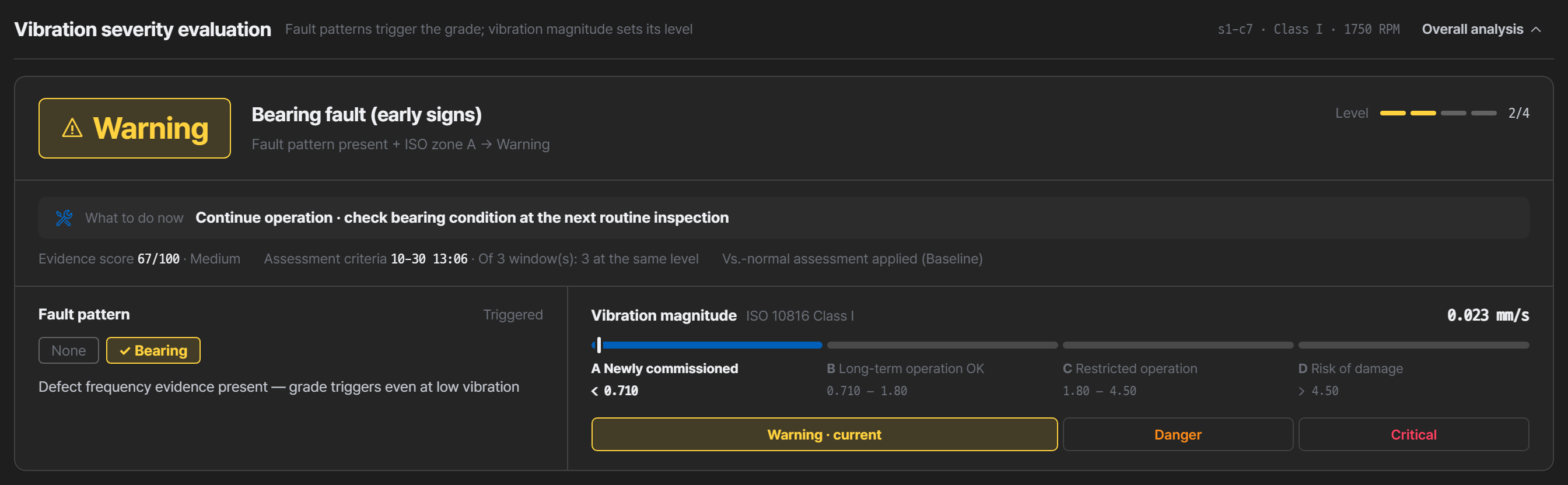
Two boxes underneath show how the grade was set. ① Fault pattern (① 결함 패턴) is the axis that switches the grade on (none / present), and ② Vibration magnitude (② 진동 크기) is the axis that sets its height — the ISO zone A–D bar fills up to the current value, and the row below lists the grade each zone gives when a fault pattern is present (A·B → Warning, C → Danger, D → Critical). The zone bar uses no grade colors, and the zones are named by their ISO meaning (A new-machine level · B long-term operation OK · C restricted operation · D damage likely) rather than by grade words.
That grade is not set by the vibration magnitude (ISO). Exactly one axis raises it: the fault pattern — whether evidence stands at a bearing defect frequency (BPFO / BPFI / BSF / FTF) in the envelope. Only then does the grade rise, and the ISO zone decides how high it rises.
So a machine that shakes hard but shows no fault pattern stays at Good, while one with ordinary amplitude but a clear pattern moves up — which is exactly where early bearing damage lives, before it reaches the amplitude. Baseline and band values never move the grade; they appear as supporting evidence only.
The period statistics table (ISO value · Crest Factor P95 · broadband RMS P95 · rate of change · worst sustained RMS · observation window) is computed over the whole selected period. Only the ISO value row is a basis for the grade; the other rows only state the fact against their limit (within · over). Hover over a note to see the full calculation conditions.
Monitoring cards use the same judgment rule, so the two screens do not disagree (detail analysis uses a longer window and checks several points across the period). How detection works has the full principle.
Switching the display unit
The same vibration signal reveals different faults depending on whether you view it as acceleration (g) · velocity (mm/s) · displacement (μm). Switch with the display quantity (표시 물리량) buttons in the “Spectrum analysis” heading; the unit the sensor actually measured is marked (원본) (original).
| Unit | What it emphasizes |
|---|---|
Acceleration g | High frequency — bearing and impulsive faults |
Velocity mm/s | Mid band — the basis for ISO grading |
Displacement μm | Low frequency — imbalance and misalignment |
If you suspect a bearing fault but the velocity waveform shows little, switch to acceleration. The conversion applies to the waveform, FFT, spectrogram, cepstrum, and diagnostic indicator (time-domain) display, and the unit currently selected is also used when you generate a report. The envelope is a judgment input, so it is always computed in the sensor’s original unit; trends and grading are unaffected.
Kurtosis saturation warning
When the kurtosis trend falls back from a peak while RMS holds steady or rises, a warning appears under the chart.
Falling kurtosis normally reads as “getting better”, but this combination can mean the fault has progressed to where impacts have become continuous. An early bearing fault raises kurtosis with sharp impacts; as the fault spreads, the impacts run together and kurtosis drops again. Don’t read kurtosis alone as recovery.
Charts
| Chart | What it shows |
|---|---|
| RMS trend | Vibration energy over time · ISO zone reference lines |
| Peak-to-Peak · Crest Factor · Kurtosis trends | Impact size and waveform spikiness over time |
| Defect-band energy trend | Per-band energy over time. With band extraction on, envelope series (periodicity, fault frequencies) are drawn too. Click a legend entry to hide or show that series. View vs. alarm limit (알람 기준으로 보기) rescales each series by its trained limit — 1.0 is the trained limit, so you see at a glance how close each series is (requires trained band baselines; bands never raise alerts and serve as evidence only) |
| Raw waveform | Time-domain vibration (wheel to zoom, drag to pan, double-click to reset) |
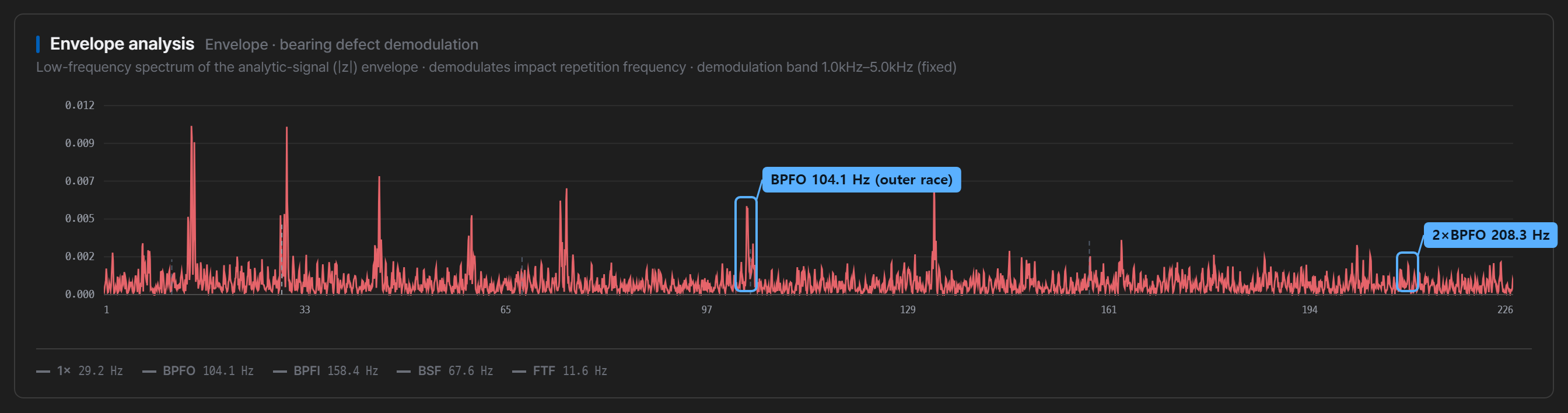
| FFT spectrum | Frequency content. With a bearing registered, marks 1× · 2× · BPFO · BPFI · BSF · FTF and lists those frequencies below the chart |
| ↳ Range | Defaults to the lower range; switch to full band (전대역) to expand out to the sensor’s maximum measurable frequency |
| Spectrogram | Time-frequency evolution — when a fault band started to grow |
| Per-band impulsiveness (kurtogram) | Shows which frequency band is most impulsive, for reference only. Envelope analysis uses the fixed 1–5 kHz band, not this one. If a mounting method is specified, bands above its limit are excluded from the search |
| Envelope | Modulation created by impulsive faults — the chart the fault pattern is measured on |
| Cepstrum | Periodic structure in harmonics and sidebands |
| Diagnostic indicators (time domain) | Impulse and energy indicators computed from the raw waveform |
Diagnosis and action details
Press Expand comprehensive analysis (종합 분석 펼치기) to see the rule-based diagnosis. It calls out faults such as imbalance, misalignment, bearing inner/outer race, looseness, and gear issues, and presents supporting evidence (with the indicator each piece came from) alongside action details (how to carry out what to do now, and what would strengthen the verdict, each with its reason).
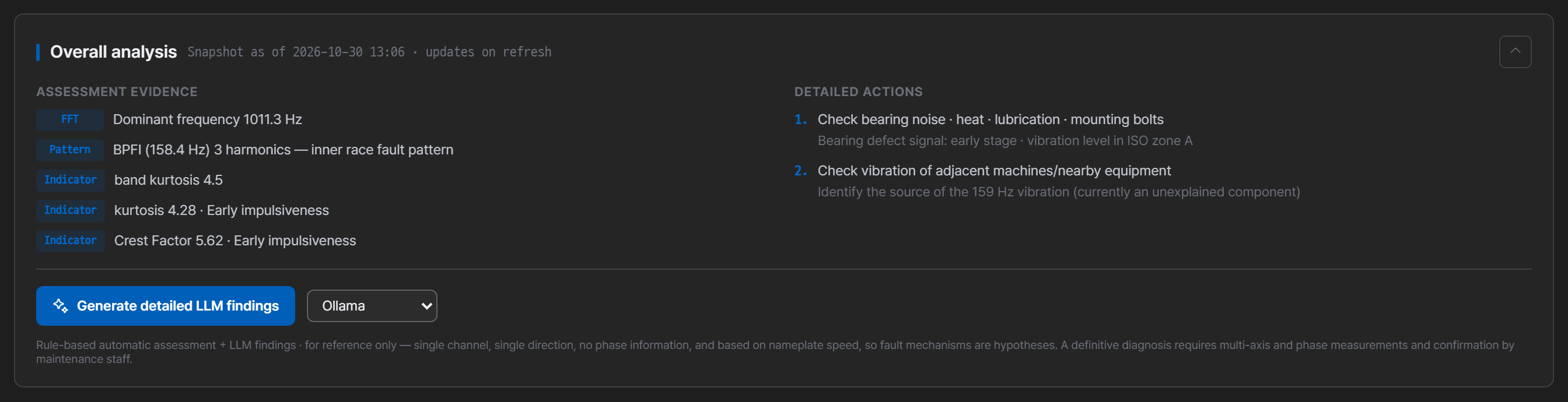
Action details are not a fixed list: only the items that match the verdict (fault pattern · vibration magnitude · impulsiveness · trend · vibration of unknown origin · missing equipment information) are picked, up to five. When a measurement gate is active, only measurement checks appear and no machine inspection items.
This verdict is computed from a single-channel, single-direction measurement with no phase information, using nameplate rotational speed. Fault mechanisms are hypotheses; a confirmed diagnosis requires multi-axis and phase measurement plus review by a maintenance engineer.
LLM opinion (optional)
With an LLM connected, Generate LLM opinion (LLM 상세 소견 생성) below the comprehensive analysis produces a narrative expert opinion grounded only in the measured values shown in the charts. Pick the provider from the dropdown next to the button; the model used is noted beneath the opinion.
The opinion is written for the equipment owner rather than a vibration specialist, and answers three questions: current state (지금 상태) · why it looks that way (그렇게 보는 이유) · recommended actions (권장 행동). The LLM reads the measurement data with all its technical terms, but writes the opinion in plain words (for example, “BSF sidebands” becomes “a signal from the bearing balls”).
The verdict (grade · cause ranking · actions) has already been set by the engine; the LLM only explains what it means. It never recomputes values or reorders the ranking, closes on a provisional note when the measurement warning is up, never describes items that are undecidable in principle as “unlikely”, and does not inflate the grade. Recommended actions cover only the on-screen what to do now and action details — the LLM does not invent new ones.
Findings are requested in the screen language. For English and Japanese, an output-language instruction is added at the end of the prompt. Small local models may not follow it fully and can mix in Korean.
Without an LLM connected, the rule-based diagnosis stands on its own.
Report
Where you turn analysis into a document.
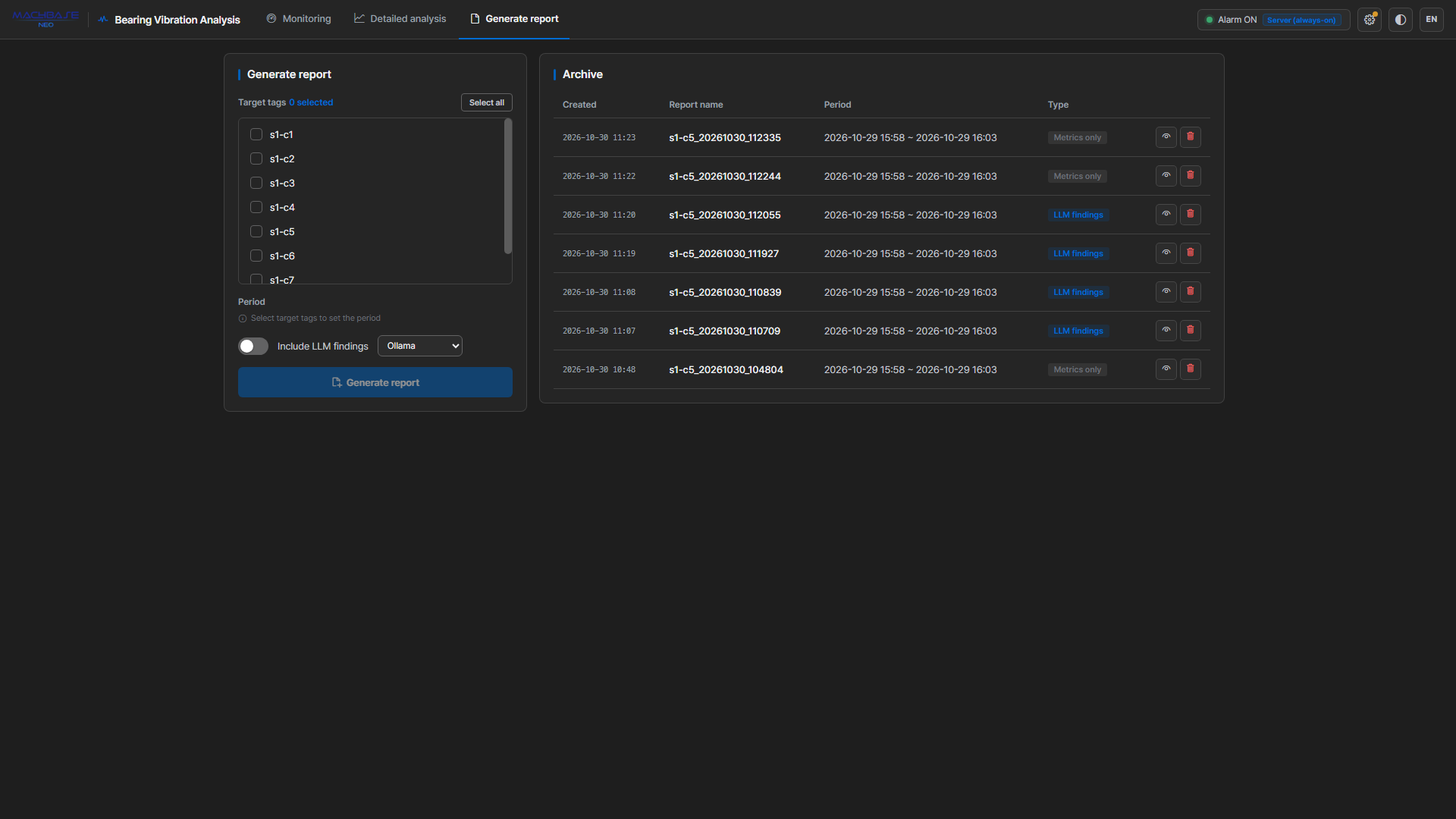
- Select the target tags for the report. (nothing is selected by default; select-all is available)
- Choose a period — presets (1 hour · 6 hours · 24 hours · All) are anchored per tag, to that tag’s latest data; a range set in the calendar applies as-is to every selected tag. If some tags have no data in a custom range, a warning shows where their data actually is.
- Optionally turn on Include LLM opinion and pick a provider.
- Press Generate report.
One report file is created for each selected tag. The file name looks like tagname_timestamp.html.
Reports are made in the screen language when generation starts. Changing the language during a batch does not affect that batch. Existing reports do not change, so generate again if you need another language.
Generation runs in four steps — query data → compute indicators → generate opinion → save — with progress shown. If it takes too long, Cancel generation stops it. Finished reports are saved under the signed-in account’s folder (<account>/vibration-reports/, with the account name in lowercase).
Report structure
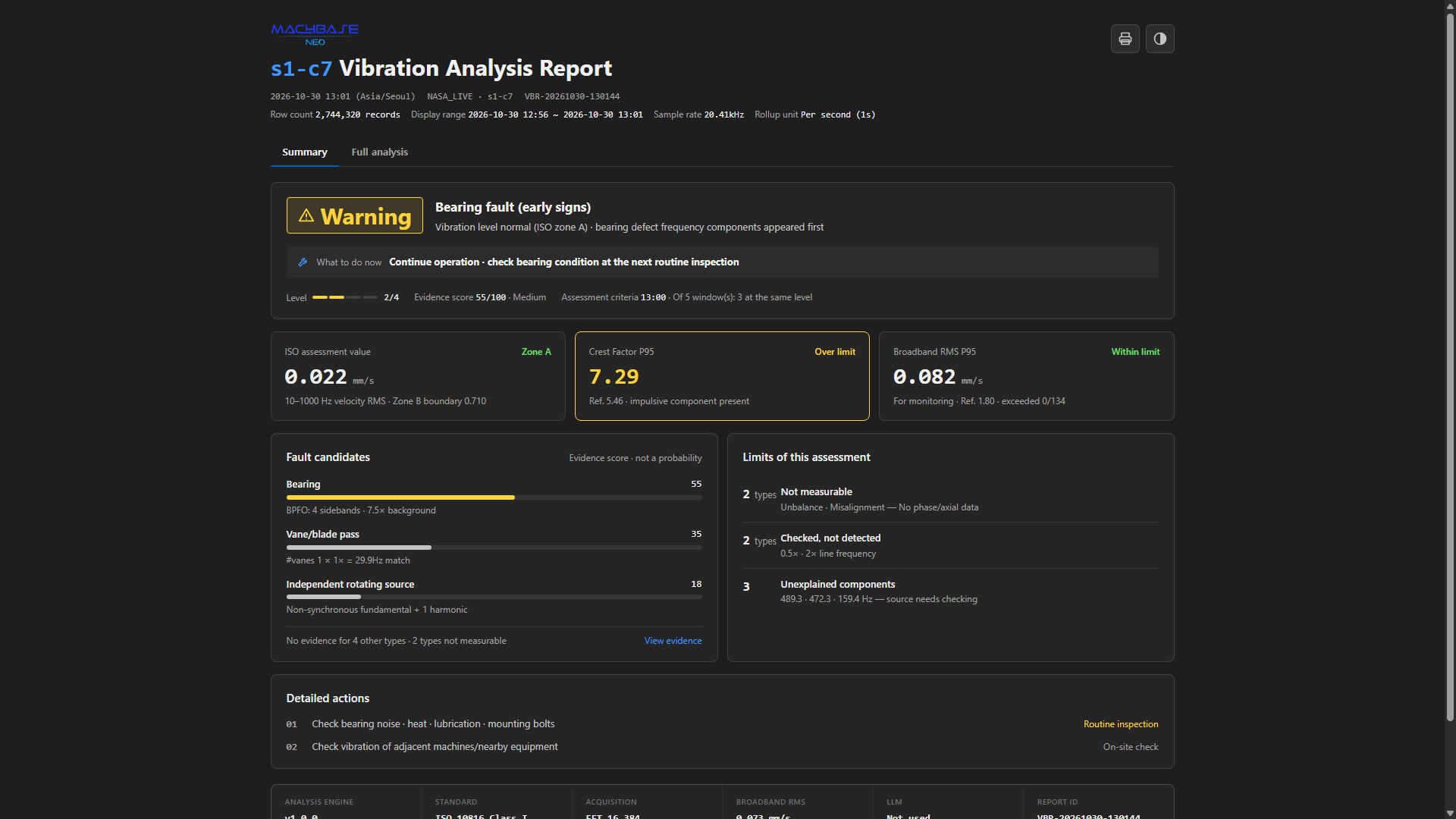
The Summary (요약) · Full analysis (전체 분석) tabs at the top of the report switch the view. Summary is built for a quick read; Full analysis lays out every chart and all evidence in numbered sections (01 Severity through 05 Action details). The View evidence (근거 보기) and View in-depth analysis (심층 분석 보기) links in the summary jump to the matching section of the full analysis.
| Tab | Contents |
|---|---|
| Summary | Grade (position among four steps) and verdict · what to do now · LLM opinion key summary (when connected) · key figures (ISO value · Crest Factor P95 · broadband RMS P95) · fault candidates · limits of judgment · action details |
| Full analysis | Severity (fault pattern × vibration magnitude, indicator table) · Trend · Spectrum (FFT · raw waveform · spectrogram · envelope · kurtogram) · Fault evidence (evidence score 0–100 · counter-evidence · unexplained components) · Action details · LLM opinion (when connected) · Measurement info |
Verdicts, evidence and actions in the report are written as terse Korean bullet phrases (개조식). The LLM opinion consists of a one-line key summary plus three parts — current state · why it looks that way · recommended actions — and is marked Provisional (잠정 판정) when the top evidence score is below 70 or a measurement gate is active.
The FFT in the spectrum section is drawn over the default range where the fault frequencies are visible; the Full band (전대역) button widens it to the highest frequency the sensor can measure. In the reference frequency list below the chart (shaft harmonics · bearing fault frequencies), the component the evidence points to is outlined.
Printing outputs the full analysis in the light theme: charts in a single column, the FFT at the range chosen on screen, and the measurement info on one row.
Print with the print button at the top of the report (Print · Save as PDF). A report opened from the app sits in a frame isolated from the console (so the report file cannot reach your login or API token), and the browser’s Ctrl+P prints only that outer frame.
Saved reports are self-contained HTML with no external references, and their charts are live rather than baked images — wheel zoom, drag, and tooltips work, and they redraw to match the theme. Handing over the single file is enough for someone else to explore it the same way.
Each report carries a judgment fingerprint, computed from the judgment engine’s rules. If the fingerprint and the Thresholds cell match but the numbers differ, the data changed; if the fingerprint differs, the package (judgment engine) changed.
Archive
The archive on the right lists saved reports in these columns.
| Column | Contents |
|---|---|
| Created (생성일시) | When the report was generated |
| Report name (리포트명) | The file name (tagname_timestamp). Hover to see the target tag |
| Period (기간) | The period the report covers |
| Type (유형) | LLM 소견 (opinion included) or 지표만 (indicators only) |
Use the eye button on each row to preview and the trash button to delete (a confirmation appears; deletion cannot be undone). Page through when there are many.
Tips
- Start with one or two tags to confirm behavior, then widen the scope.
- A grade needs RPM and the bearing model under Equipment. For acceleration or displacement sensors, set the unit too — left empty it is treated as velocity (mm/s) and the grade height goes off.
- To see “different from usual” changes as evidence, run baseline learning while the equipment is healthy.
- If monitoring must continue with the app closed, switch to server monitoring.
- Export events periodically with Save for separate archiving.
- When you see an extreme indicator, check the measurement validity warning first — a large share of misdiagnoses come from the sensor, not the machine.