Blackbox User Manual
This document explains how to install the Machbase Neo Blackbox package, register servers, manage cameras, configure data retention, and review events.
Installation
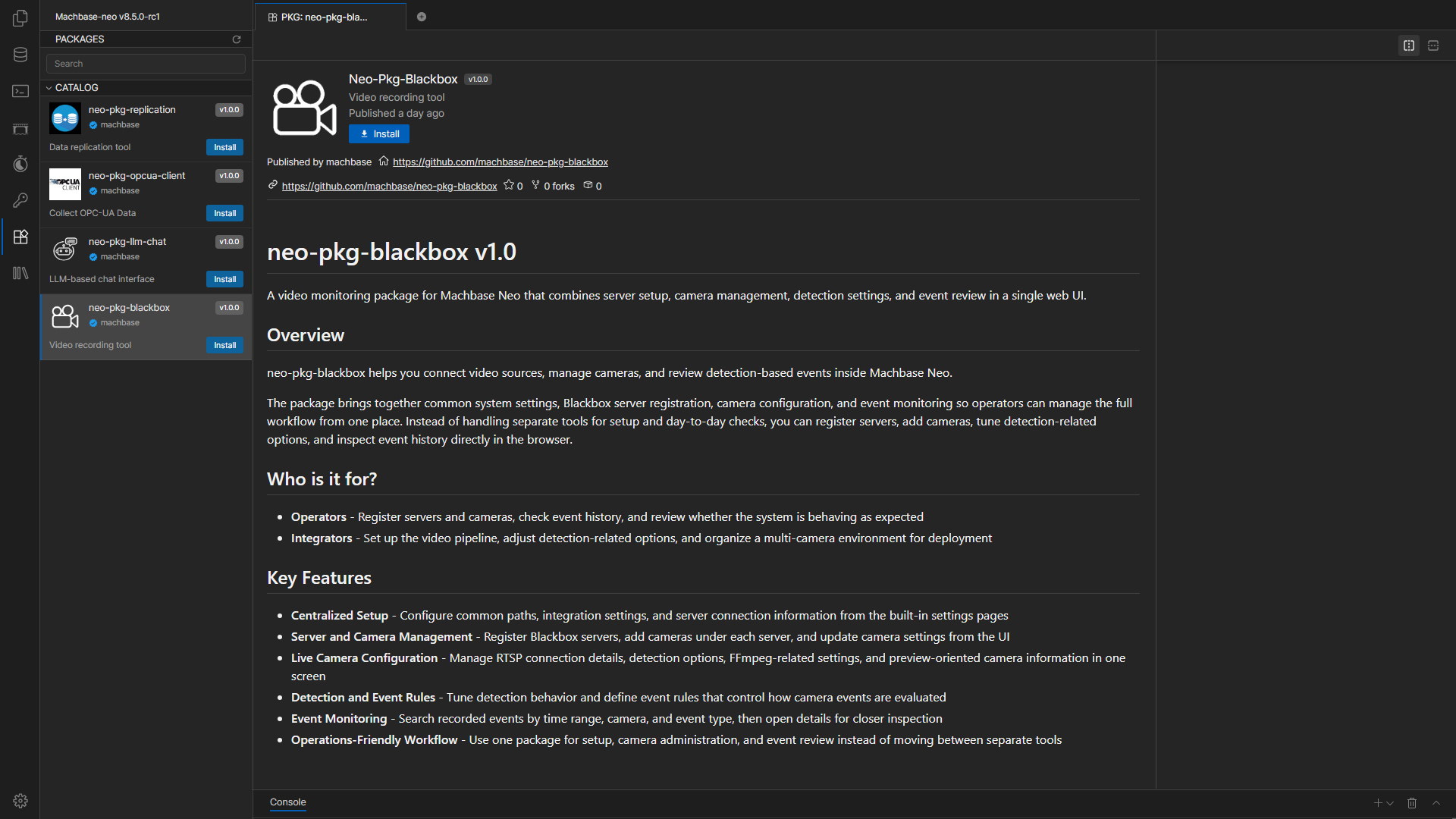
The left sidebar in Machbase Neo shows the list of available packages.
Select the Blackbox package there and click the Install button to install it.
Installation may take a short time, so wait until it finishes.
What This Document Covers
- Package installation
- Saving common settings in the Settings screen
- Configuring Retention and running manual cleanup
- Registering a Blackbox Server and testing the connection
- Adding and editing cameras
- Creating and using Video panels in Neo dashboards
- Searching and reviewing events in the Event screen
- Common operational checks and troubleshooting points
Basic Workflow
- Install the Blackbox package in Neo.
- Review the common paths and integration settings in Settings.
- If needed, configure the Retention tab to define how long old data is kept and when automatic cleanup runs.
- If a localhost server is auto-registered during the first installation, change
127.0.0.1to an IP address reachable from other computers. - Add more Blackbox Server entries in the left sidebar if needed.
- Add cameras under each server.
- Adjust Detection, FFmpeg, and Event Rules if needed.
- If needed, add a
Videopanel in a Neo dashboard and review camera video there. - Review event history in the Event screen.
Screen Layout
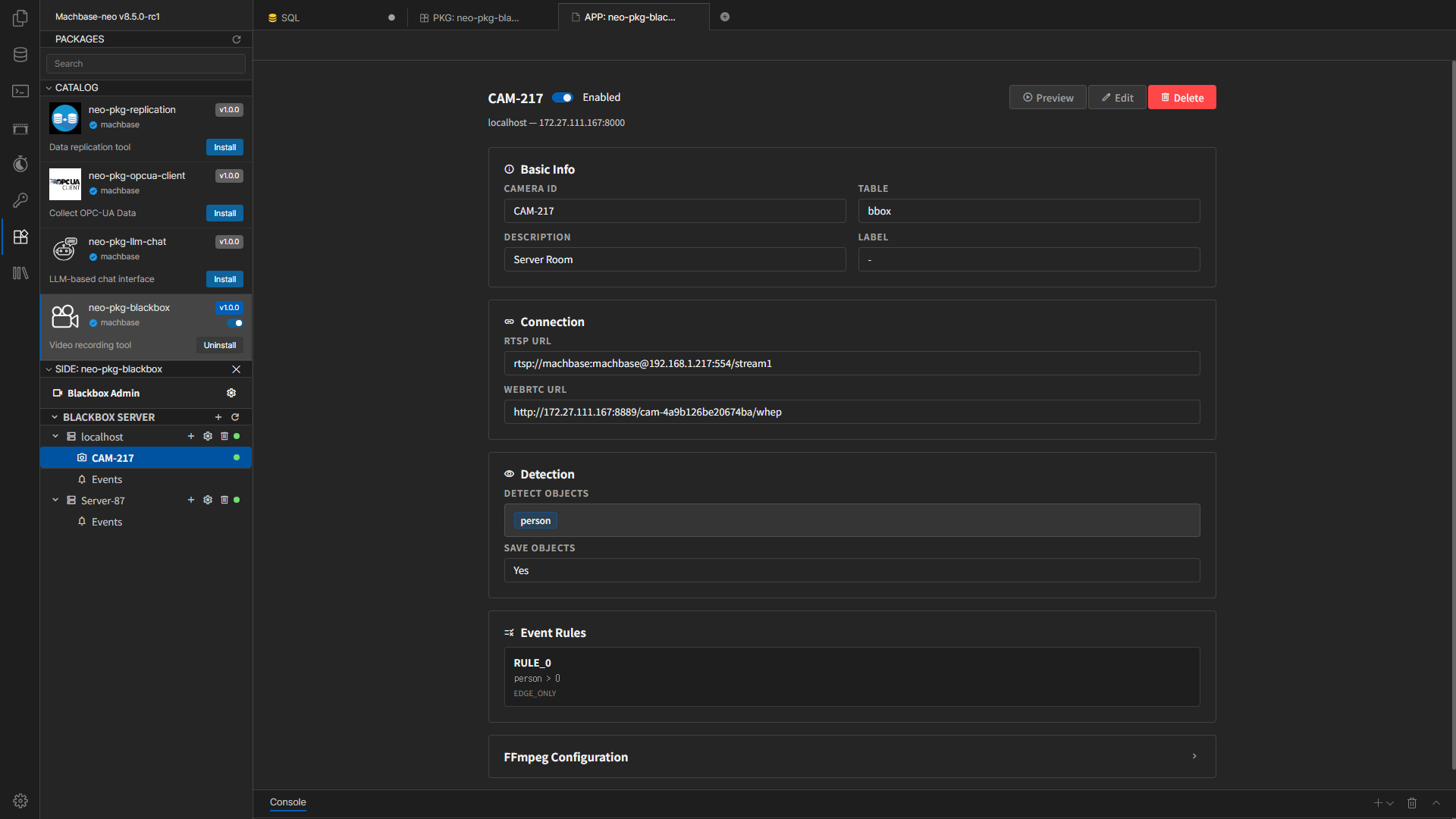
- Left sidebar: Blackbox Server list, Camera list, Events entry, add server, refresh
- Top Settings tabs: General, FFmpeg Default, Log Configuration, Retention
- Camera screen: basic information, RTSP connection, Detection, FFmpeg, Event Rules, Live Preview
- Event screen: search by time range, camera, type, and review details
Document List
- Settings and Server Registration
- Camera Management
- Using Dashboard Video Panels
- Event Monitoring
- Troubleshooting