LLM Chat Technical Documentation
The Machbase Neo LLM Chat package is an LLM-based chat interface for interacting with the Machbase Neo time-series database in natural language. Through conversation, you can query data, generate dashboards, create analysis reports, and explore manual documents.
The package runs an agentic loop internally. It sends user questions to the LLM, executes tool calls in Machbase Neo, feeds the results back to the model, and repeats until a final response is produced.
Installation
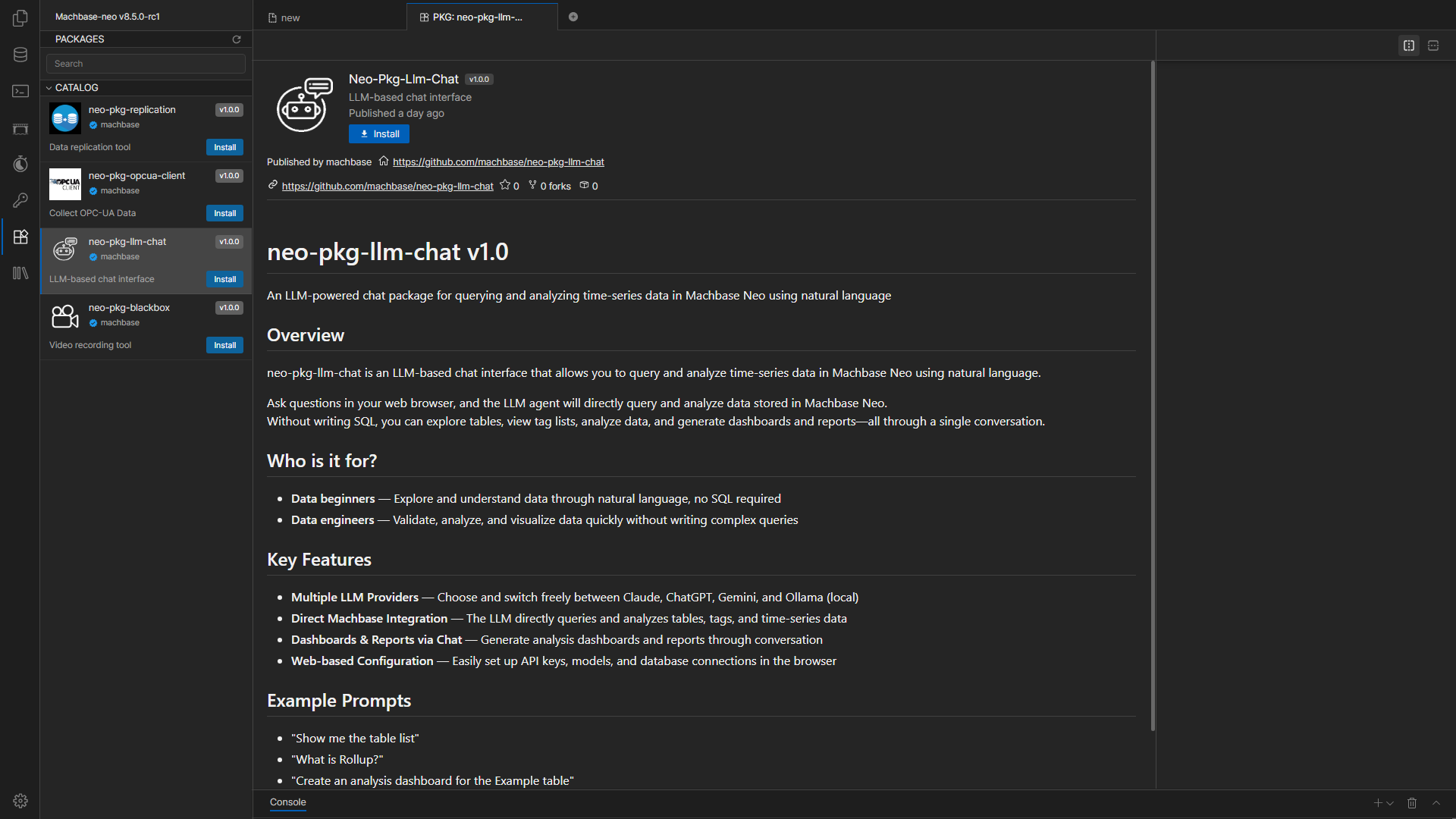
The left sidebar in Machbase Neo shows the list of available packages.
Select the LLM Chat package and click the Install button to install it.
Installation may take a short time, so wait until it is completed.
Uninstall
Select neo-pkg-llm-chat from the left panel and click Uninstall to remove the package and its related service.
LLM Providers
The package supports four LLM providers. Provider calls themselves are single-shot (non-streaming) request/response; per-tool-step progress is streamed to the browser over WebSocket.
| Provider | API | Local |
|---|---|---|
| Claude | Anthropic API | No |
| ChatGPT | OpenAI API | No |
| Gemini | Google Gemini API | No |
| Ollama | Ollama REST API | Yes |
Provider and connection settings are configured from the web-based Settings screen. API keys, model lists, and Machbase Neo connection information can all be saved directly in the browser.
Agentic Loop
The agentic loop is the core execution engine of this package. When a user sends a question, the system first detects the query type, then enters an autonomous loop where the LLM selects tools and executes them.
Query Type Detection
- Questions containing
report/summary reportor their Korean equivalents (리포트,보고서)- Classified as report mode and use the HTML analysis report flow.
- Questions containing
advanced,spectrum,envelope,anomaly,vibration analysis,frequency,crest factor,peak-to-peak,FFT, orRMSor their Korean equivalents (심층,다각도,고급,스펙트럼,엔벨로프,진동 분석,이상치,이상 탐지)- Classified as advanced mode and produce in-depth charts compiled from analysis intent (IR).
- Other analysis or dashboard requests
- Classified as basic mode and use the table-based chart flow.
Correction (Fixer) Layer
Before a tool runs, the fixer layer auto-corrects common LLM mistakes so the call can succeed.
| Fixer | Description |
|---|---|
| Argument normalization | Corrects wrong or misspelled parameter names in tool calls |
validateTagInArgs | Checks whether tag names used in a call exist in the actual table |
| Time range correction | Adjusts time_start / time_end to match actual data boundaries |
| TQL fix | Repairs common TQL syntax issues before execution |
Guard Pipeline
The guard pipeline runs behavioral guards around the agentic loop. Pre-tool guards run before a tool executes; post-loop guards run when the model tries to finish.
Pre-tool guards:
| Guard | Description |
|---|---|
consecutive_failure | Skips a tool after it fails twice in a row instead of retrying forever |
dashboard_early | Prevents dashboard creation before all TQL templates are saved (advanced mode) |
redundant_finalize | Blocks extra finalize calls after the dashboard URL was already issued (avoids orphan files) |
Post-loop guards:
| Guard | Description |
|---|---|
dashboard_omission | Catches a false “dashboard created” claim when no tool was actually called |
chart_omission | Re-prompts when advanced analysis finished but charts are missing from the dashboard |
report_omission | Re-prompts when report mode is active but save_html_report was never called |
forecast_label | Corrects the label when a plain analysis report is finished but the answer calls it a “forecast report” (passing off unvalidated past analysis, with no backtest or confidence interval, as a forecast) |
doc_index_answer | Forces a body fetch when the document tool result is only a section list / navigation hint but the model tries to answer without re-querying |
dashboard_answer | Recovers a successfully created dashboard URL that the final answer left out |
tql_inject (tql_omission) | Ensures the validated ```tql chart is present and intact in the final answer |
raw_tql | Detects hand-written ```tql that came from no tool result and redirects to the compiler |
fake_tql_answer | Blocks fabricated / hallucinated TQL syntax in the final answer |
What This Documentation Covers
- Package installation
- Initial setup and model registration
- Chat screen usage and question patterns
- Built-in tools and automation features
- HTTP API and WebSocket protocol
- Common connection and usage problems
Basic Workflow
- Install the LLM Chat package in Neo.
- When you open it for the first time, enter the connection information in Settings.
- Enter the API key or endpoint for the provider you want to use.
- Register one or more models.
- Save and move to the Chat screen.
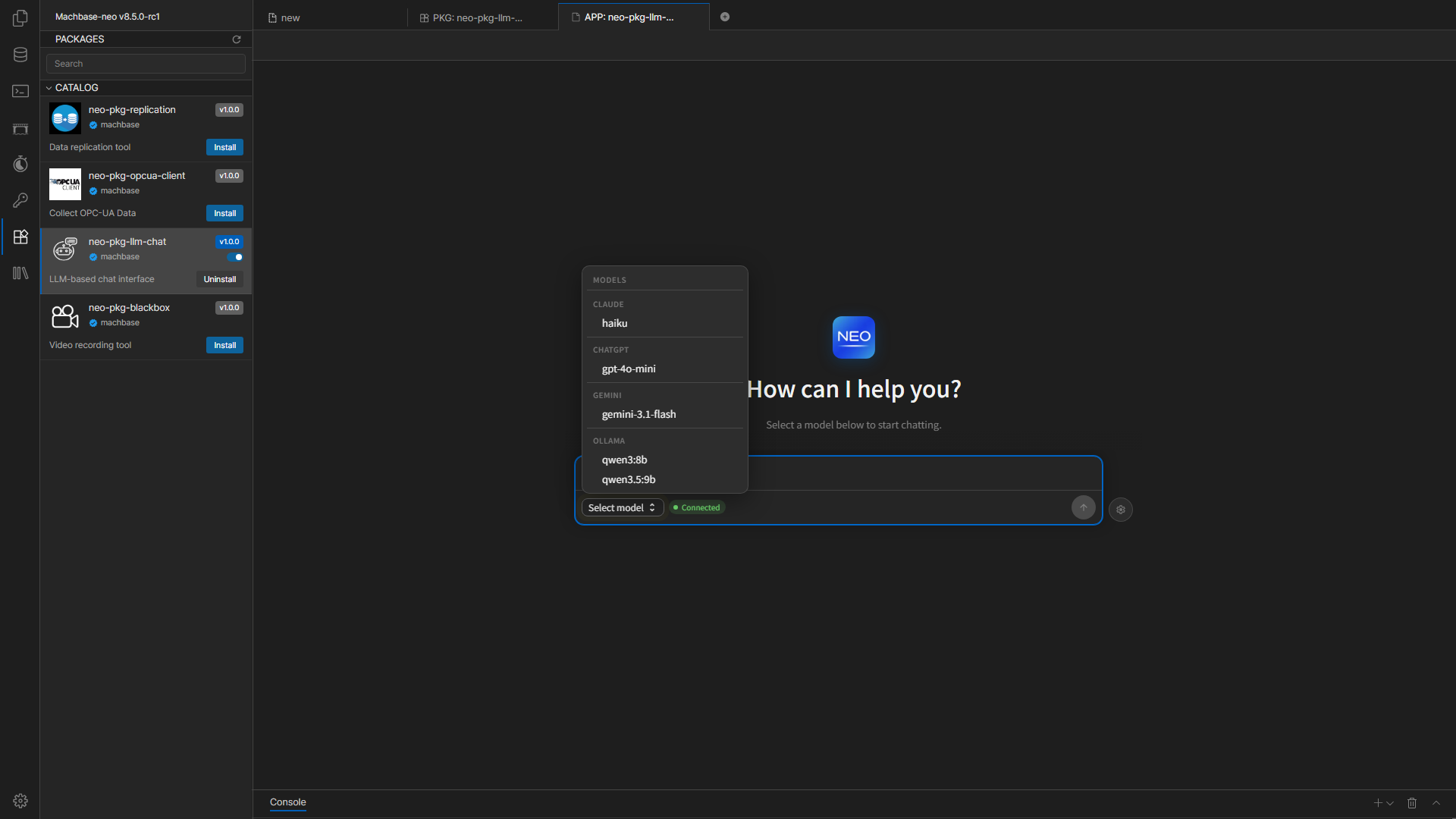
- Select a model and send questions from the Chat screen.
Screen Layout
- Settings screen
- Machbase Connection
- API Keys & Endpoints
- Models
- Chat screen
- Conversation area
- Model selection button
- Connection status
- Message input